> For the complete documentation index, see [llms.txt](https://docs.ddosify.com/llms.txt). Markdown versions of documentation pages are available by appending `.md` to page URLs; this page is available as [Markdown](https://docs.ddosify.com/ddosify/kubernetes-monitoring/distributed-tracing.md).
# Distributed Tracing
**Distributed Tracing** enables tracking of requests as they pass through the microservices in a system**.** Ddosify captures **Traces** and **Spans** out-of-the-box on your Kubernetes Cluster without modifying your code or restarting your services. Ddosify uses a lightweight [eBPF Agent (Alaz)](https://github.com/ddosify/alaz) to generate Distributed Tracing data and enable auto context propagation.
To do so, on the [Ddosify Platform](https://app.ddosify.com/), click "Clusters" under the "Observability" tab first.
Clusters Page
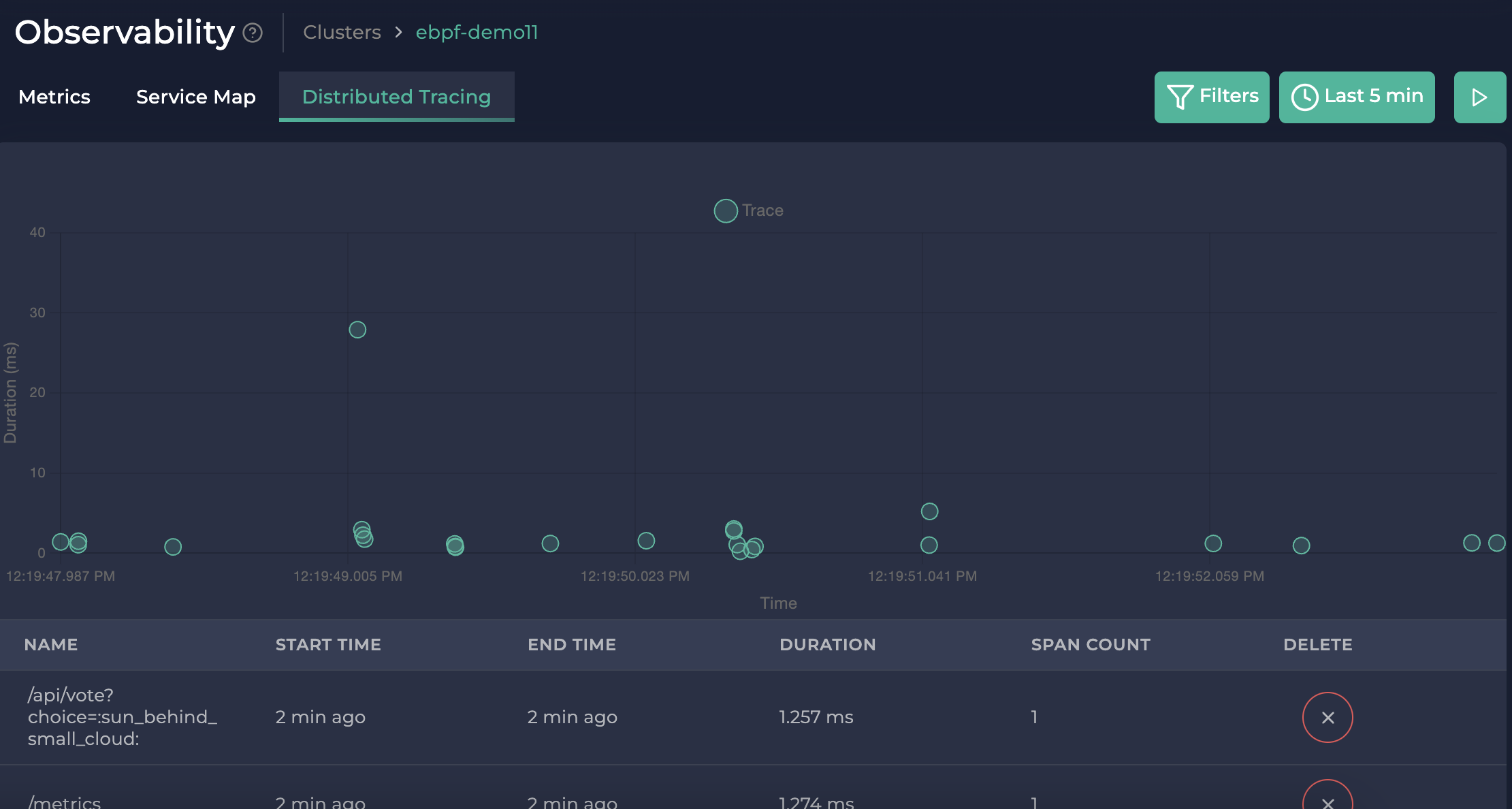
After you click on a cluster you want to observe on the clusters page, click on the distributed tracing tab. This will take you to the distributed tracing page. You will see this:
Distributed Tracing
Here, you can filter and view traces in chart and list form.
### Filtering
You can apply the following filtering:
* Operations (trace names)
* Trace count
* Tags
* Min/max duration (in ms)
* Min/max span count
* Time interval
{% hint style="info" %}
**Note:** Filtering affects both the trace chart and the trace list. They show the same traces but in different formats.
{% endhint %}
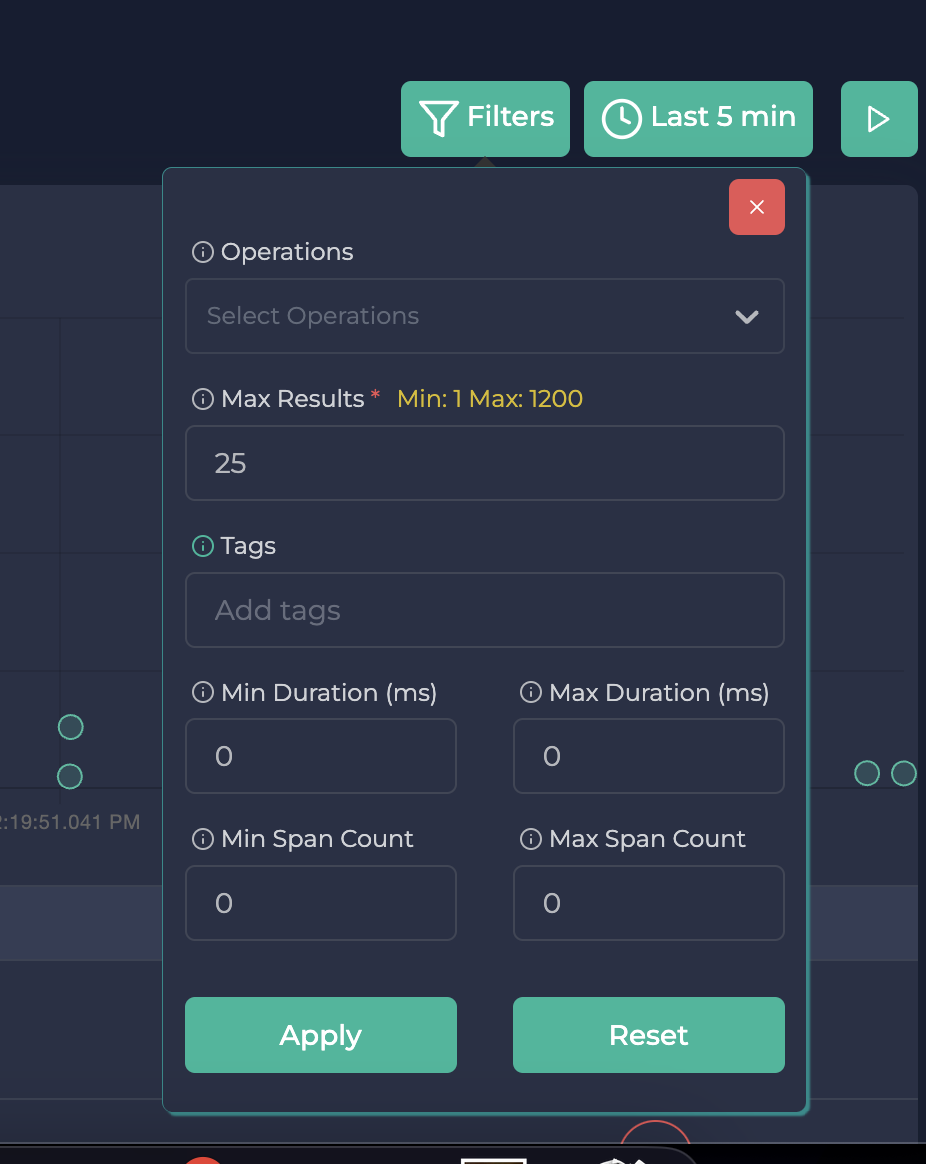
To apply filtering, click the "Filters" button on the upper right.
Trace filtering
#### Operations
Operations filtering allows you to select traces with specific names. It allows multi-select so that you can look for multiple names.
{% hint style="info" %}
**Note:** The name of a trace is the name of its first span.
{% endhint %}
#### Max Results
This limits the number of traces shown.
#### Tags
Tags allow you to filter traces by the tags in their spans. Tag filtering accepts the [logfmt](https://brandur.org/logfmt) format.
{% hint style="info" %}
**Note:** Span attributes are not allowed to be nested; thus, tag filtering does not support nested filtering either.
{% endhint %}
Let's see how we can query traces by their tags. Let this be an example tags for a span:
```json
{
"path": "/",
"to_ip": "192.168.20.73",
"method": "GET",
"to_uid": "d0210c8f-fe44-472c-bbb2-39d64973e5a4",
"from_ip": "192.168.30.206",
"to_name": "kube-state-metrics-shard",
"to_port": "8081",
"to_type": "daemonset",
"from_uid": "2148b55d-cab8-41c6-ab5e-b12d9630ba0c",
"protocol": "HTTP",
"from_name": "aws-node",
"from_port": "41736",
"from_type": "daemonset",
"status_code": "200"
}
```
An example tag filter could look like this:
```
method=GET protocol=HTTP from_port=41736
```
While filtering, it is enough for a single span of a trace to satisfy this filter. As a result, the traces with at least one span matching this filter are retrieved.
#### Min/Max Duration
You can filter the traces by the total time they took in ms.
#### Min/Max Span Count
You can also filter the traces by their span count.
#### Time Interval
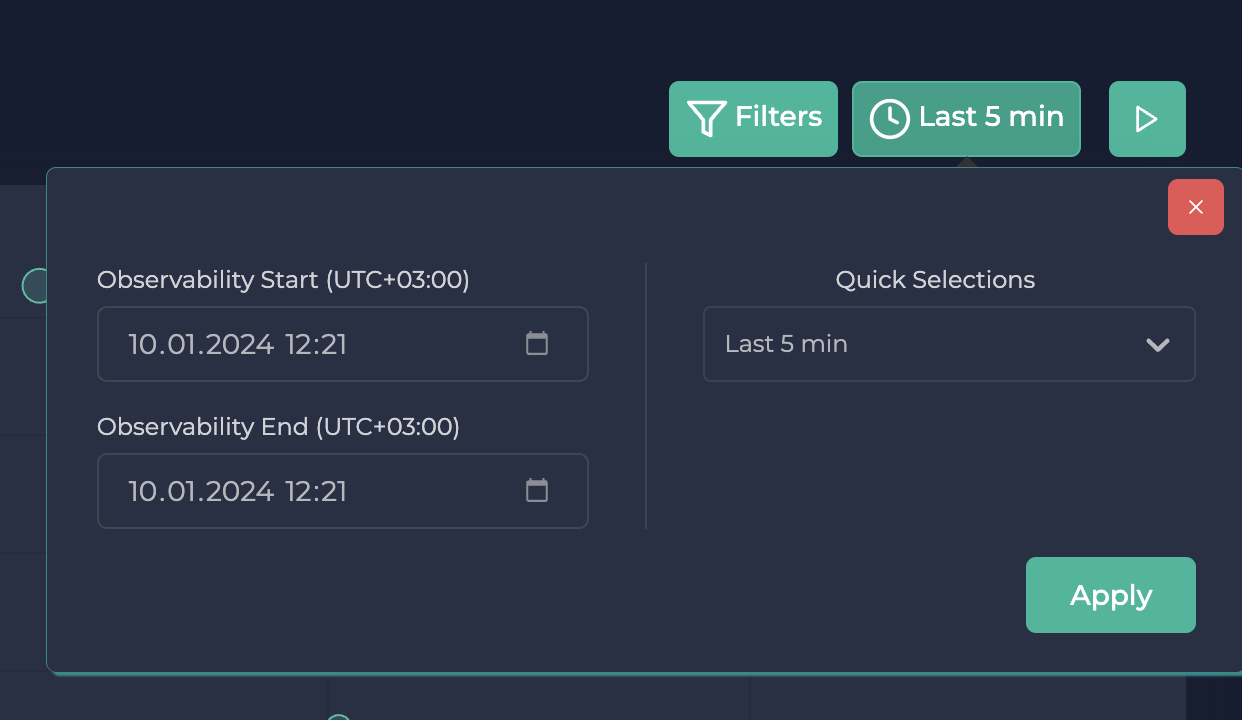
To apply a time interval, click the "Last 5 min" button next to the "Filters" button. You will see this:
Time interval filtering
Here, you can specify your desired time interval. You can specify your start-end times yourself or pick predefined time intervals from the "Quick Selections" section.
{% hint style="info" %}
**Note:** The time interval between the start and the end could be apart at most 24 hours.
{% endhint %}
### Trace Chart
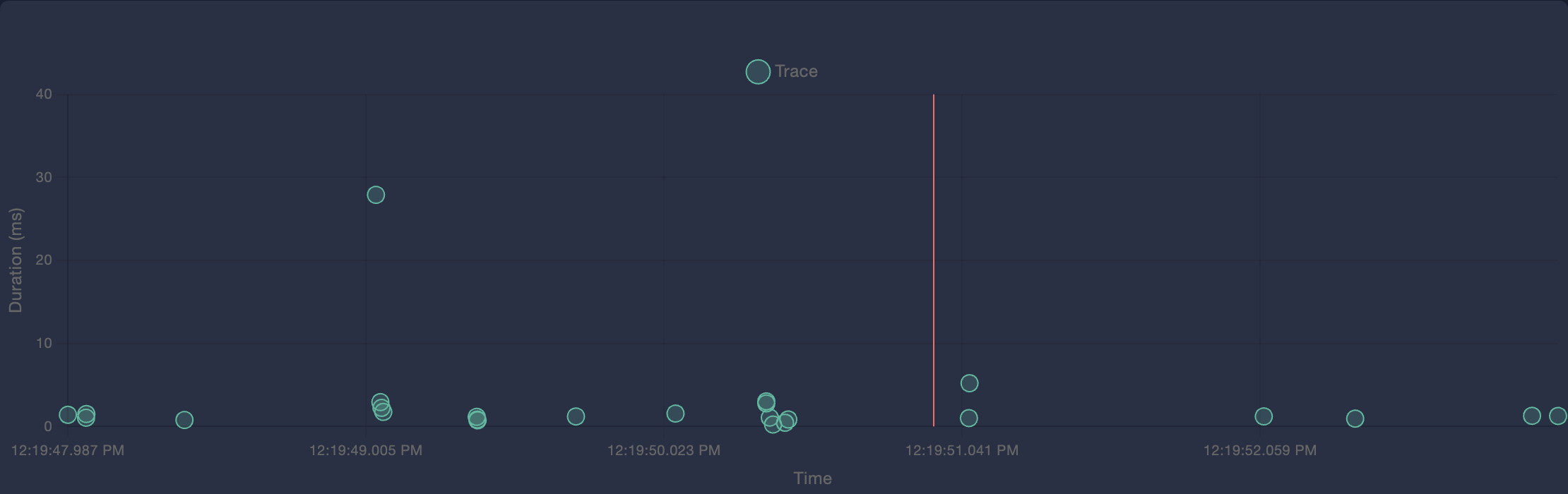
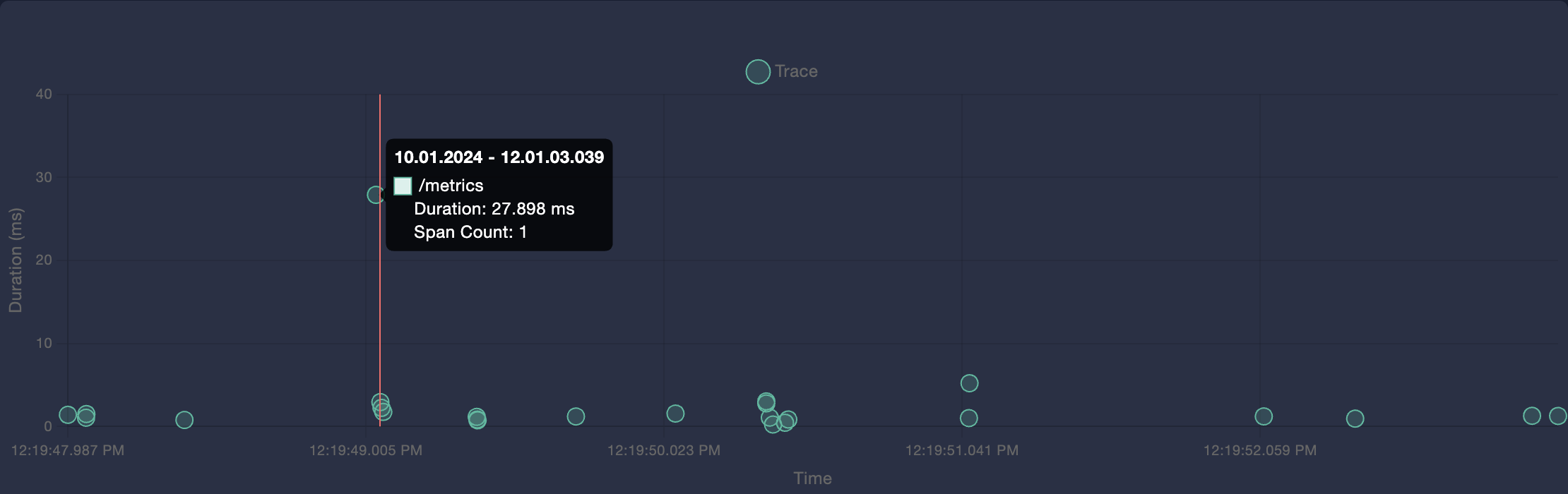
The trace chart allows you to view the distribution of your filtered traces by their dates and durations. While the x-axis is the date, the y-axis is the duration.
Trace Chart
To view more details (start time, name, duration, span count) about a trace, you can hover on it:
Hovering On A Trace
### Trace List
Under the trace chart, you can view the filtered traces in a listed format. You can delete them here as well. You can also use the page numbers below to see the remaining traces.
Trace List
### Trace Details
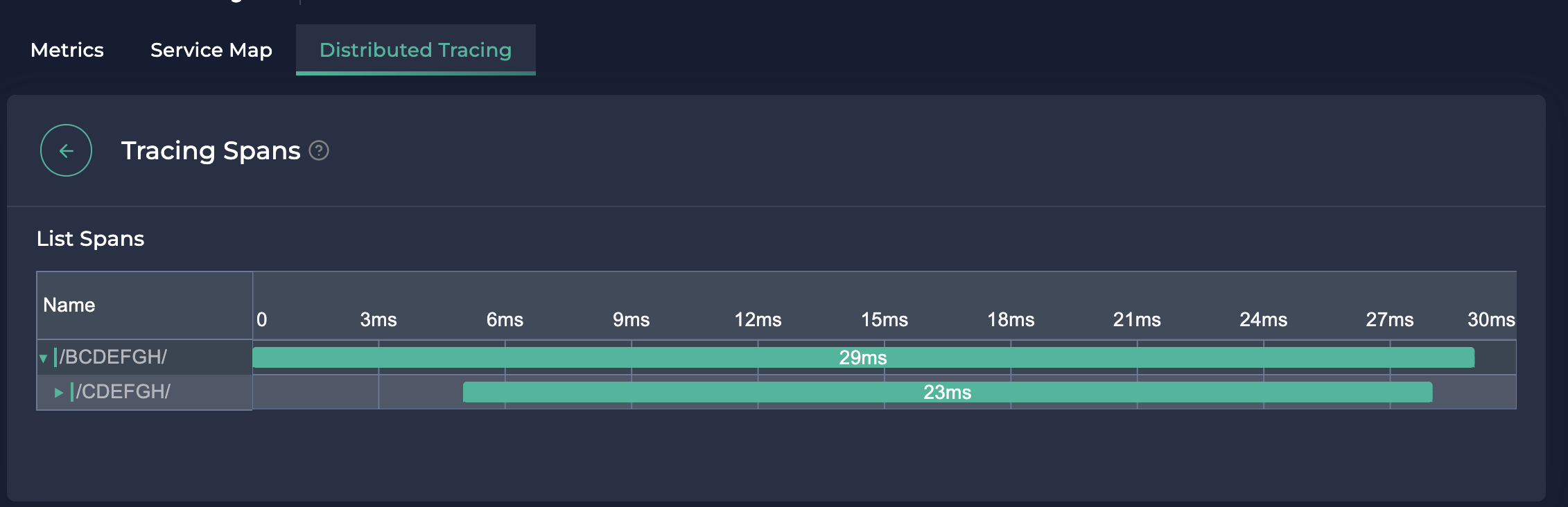
After you click on a trace (either on the chart or the list), you can view its details (including its call hierarchy and time).
Trace Details
Each row represents a trace, whereas the columns represent the time.
No matter how long your trace took, the whole hierarchy is always fitted inside your view, so you would not need scrolling/zooming to understand the trace.
You can expand/collapse spans by clicking on their "Name" column.
Collapsed Span
You can also hover over a span to see its details, such as:
* Source/target ports
* Path (endpoint)
* Status code
* Request method
* Start/end time
Hovering On A Span
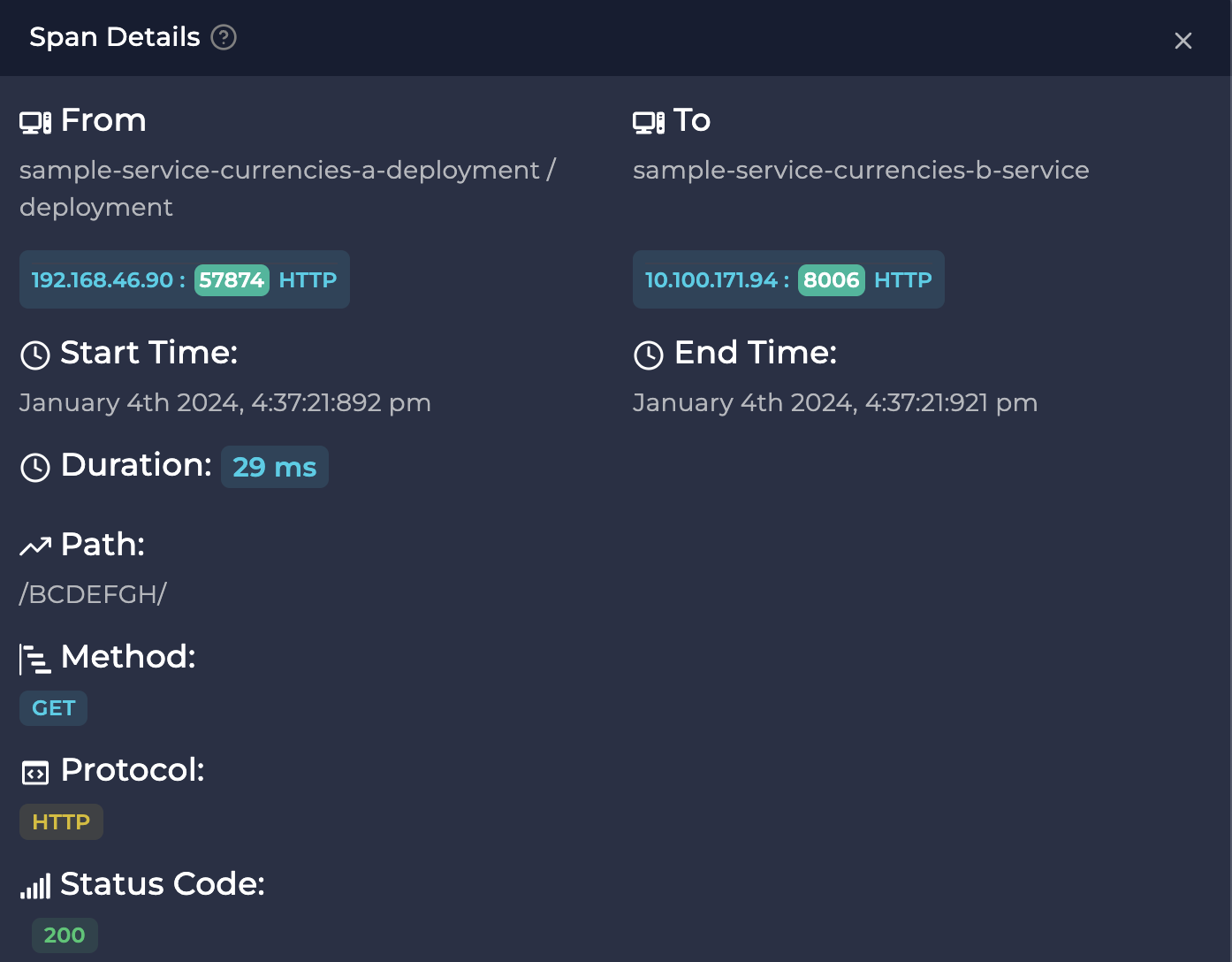
For more details, you can click on a span:
Span Details
Here, you can view the span's details, including:
* From/to resources
* From/to IPs
* From/to port numbers
* Start/end times
* Duration
* Path
* Method
* Protocol
* Status code
{% hint style="success" %}
If you require assistance with **Distributed Tracing**, you can join our[ Discord](https://discord.com/invite/9KdnrSUZQg) or send an email to .
{% endhint %}